What Is Pine Script? A Plain-English Guide to TradingView's Language
The code behind every custom indicator and strategy on TradingView, explained without the jargon and without turning you into a programmer.
How to run TradingView on your phone without kidding yourself about what the mobile app can and cannot do versus desktop.

You are in line for coffee, or on a train, or supposed to be watching a movie. Gold pokes through a level you cared about, or Bitcoin does the thing it does at 2am, and your desk is a forty minute drive away. This is the exact moment the TradingView mobile app earns its keep, and also the exact moment people discover they never set it up properly.
This TradingView mobile app guide is about that gap. The phone is very good at a few things and clumsy at a lot of others. Knowing which is which saves you from missing a move you actually wanted, and from making a sloppy decision on a screen the size of a playing card.
Three things, mostly.
Alerts. This is the headline feature and the reason to have the app installed at all. You set a condition on any timeframe, TradingView's servers watch it for you, and your phone buzzes when it triggers. The alert is not running on your handset, so it fires whether the app is open, backgrounded, or fully closed. That is the whole point: the market does not wait for you to be at your desk.
Quick chart reads. Pull up a symbol, glance at the trend, check whether price is near a level you care about, and put the phone away. For a yes or no read, the mobile chart is fine. You can switch timeframes, drop a couple of indicators, and see the shape of things in a few seconds.
Watchlists and screening. Your desktop watchlists sync straight to the phone, so the symbols you track are one tap away. The screener works too, which is handy for a fast scan while you are out.
Notice what these have in common. They are all consumption, not production. You are reading and reacting, not building. That is the lane the phone belongs in.
An alert that never buzzes is worse than no alert, because you trusted it. Get the plumbing right once:
If you want the deeper version of this, including alert conditions and how to avoid getting spammed by your own settings, we wrote a full walkthrough on how to set up TradingView alerts. The mobile piece is really just making sure the push actually reaches your pocket.
One honest note: alerts tell you a condition was met, they do not tell you it is a good trade. A price tag hitting a number is information, not a decision. What you do next is still on you.
The mobile app tries hard to be a full trading terminal on a screen a few inches wide. It mostly fails, and that is fine, because you should not be doing this stuff on your phone anyway.
Detailed drawing and analysis. Fitting a trendline to the right candles with your thumb is a small nightmare. Fibonacci levels, precise horizontal lines, careful annotation: all of it is fiddly and error prone on touch. If your read depends on exact placement, wait for the desktop. Our guide to TradingView drawing tools assumes a mouse for good reason.
Multi-chart layouts. One of desktop's best features is seeing four timeframes at once. On the phone you get one chart. You can flip between timeframes, but you cannot glance across them, and that context matters more than people admit.
Backtesting and strategy work. Reading historical behavior, stepping through bar replay, tuning a strategy: this is desk work. If you are serious about testing an idea before you risk money on it, do it properly on a real screen. Here is how to backtest a strategy on TradingView the right way.
Pine Script. Editing code on a phone keyboard is a punishment nobody deserves. Do not.
The pattern again: the phone is for reading and reacting. The desk is for building and testing. Trying to build on the phone is how you end up with a trendline snapped to the wrong wick and a decision you regret.
| Task | Phone | Desktop |
|---|---|---|
| Alerts (create and receive) | Great | Great |
| Quick trend and level check | Great | Great |
| Watchlists and screener | Good | Great |
| Careful drawing and annotation | Poor | Great |
| Multi-chart layouts | None | Great |
| Backtesting and bar replay | Poor | Great |
| Pine Script editing | Do not | Great |
The takeaway is not that the phone is weak. It is that the phone and desktop are different tools for different moments, and pretending otherwise makes you worse at both.
A common question: does the free plan cripple the app? No. The mobile app runs on every TradingView plan, free included, and your plan limits are identical to desktop. That mainly means the number of active alerts and the number of indicators you can stack on one chart. If you are constantly bumping the alert ceiling, that is a plan decision, not a mobile bug. We broke down the tradeoffs in TradingView free vs paid plans if you are weighing an upgrade.
For most people watching a couple of markets, the free plan on mobile is genuinely enough. You do not need to pay to get a push notification when gold hits your level.
Here is a setup that keeps the phone useful without letting it drag you into bad habits.
This is the difference between using the phone and being used by it. The app is a leash on your attention if you let it, or a quiet assistant that taps you only when something you predefined actually happens. The alert-first workflow is the second one.
If you run a trend based approach on gold or Bitcoin, that alert-first idea is baked in. Vektor reads the trend, tells you long, short, or flat, and mostly tells you to wait. Its phone alerts fit this exact pattern: you are not glued to a chart, you get pinged when the state changes, and you decide from there. It works on any TradingView plan, free included, so the mobile piece costs nothing extra to try.
Yes, if push notifications are enabled for the app in your phone settings and push delivery is turned on in the alert. The alert runs on TradingView's servers, not your phone, so it keeps watching even when the app is fully closed. Battery savers and Do Not Disturb can silence or delay it, so check those if a real alert never arrived.
Yes. The app runs on every plan including free, with the same limits as desktop, mainly active alerts and indicators per chart. If you keep hitting the cap, that is a plan question, not a mobile one.
No, and it is not trying to be. The phone is fine for reading a chart, checking a level, and firing an alert. Multi-chart layouts, dense drawing, backtesting, and Pine Script belong on desktop. Treat the app as your eyes away from the desk.
Almost always a phone-side setting: push disabled for the app, an aggressive battery optimizer, Do Not Disturb, or a weak connection at trigger time. Send a test alert to confirm the pipe works before you rely on it.
The code behind every custom indicator and strategy on TradingView, explained without the jargon and without turning you into a programmer.

One sells a broad signal toolkit on a subscription. The other sells a single focused trend call for a one-time price. Here is the honest breakdown.
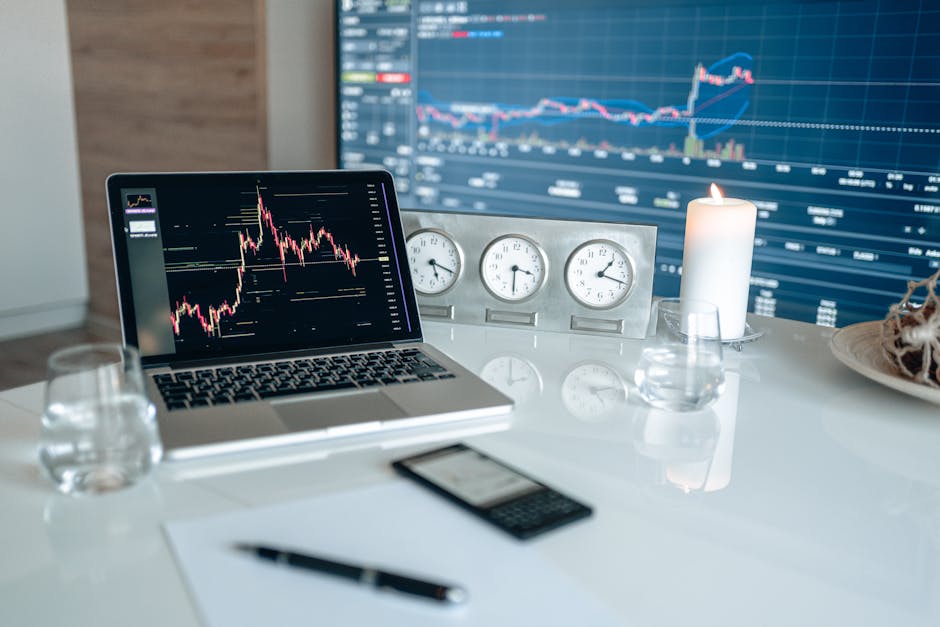
Bar replay lets you step through a chart candle by candle, so you can test a strategy the way it actually happens: one bar at a time, no future in view.